Start a new file or import an existing
.mn,
.mod, or
.mdlzmodel.
A modern, easy-to-use database modelizing tool
Modelizer Next, the database modelling tool made for you • Fast, clean & intuitive.
By the community, for the community.
New here?
Plan your database visually
Modelizer Next helps you draw the structure of a database before you build it. Add tables, add fields, connect related data, and switch between conceptual, logical, and physical views as your model gets more precise.
It is also built as a drop-in replacement for other Modelizer tools such as Modelizer and modelizer.lu. You can keep the workflow you know, open existing work, and use a cleaner, more modern interface.
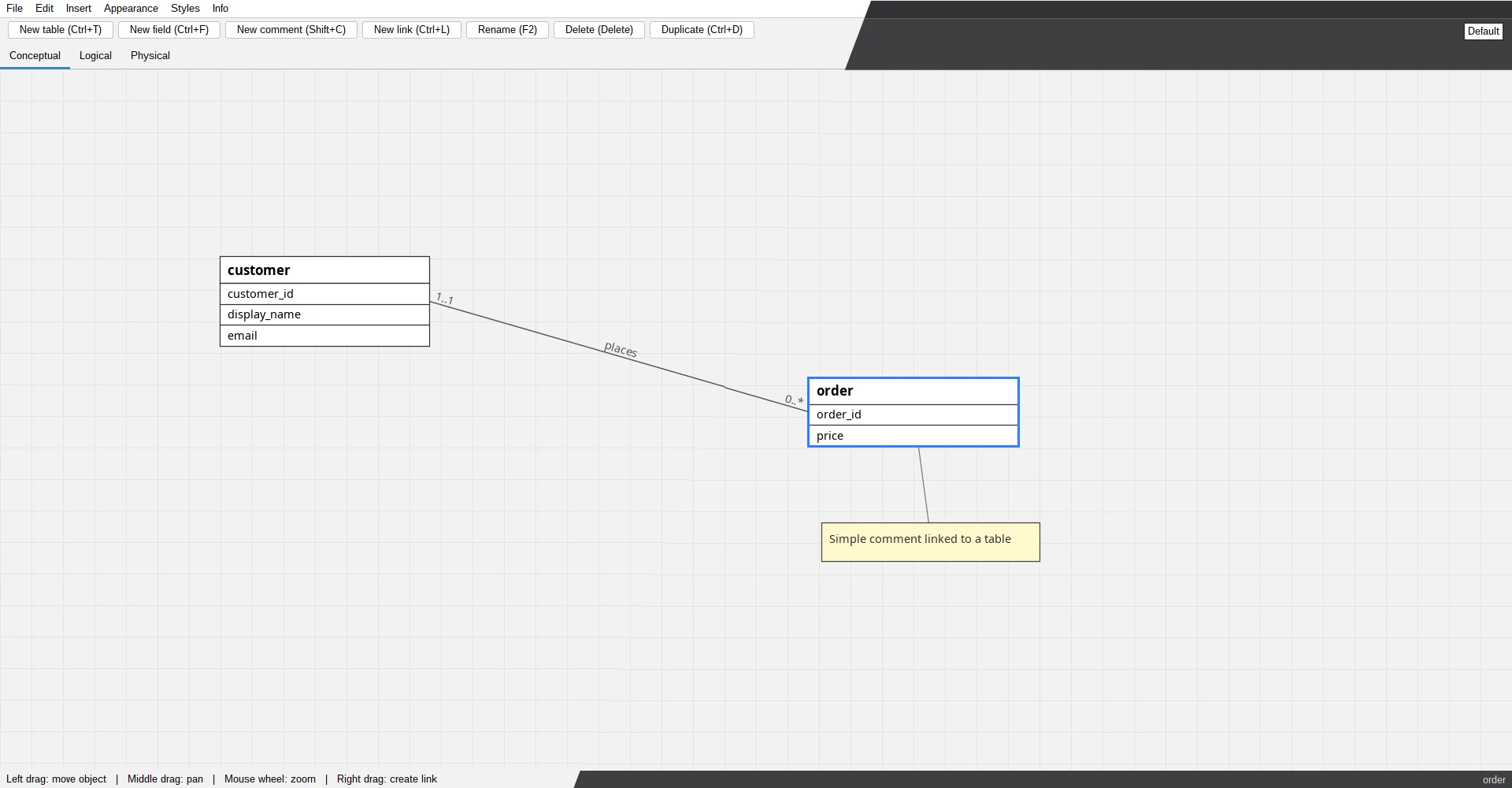
Add tables, fields, comments, and links. Use the toolbar, shortcuts, or direct mouse gestures.
Use Style Palettes to quickly style your elements and keep diagrams readable and consistent.
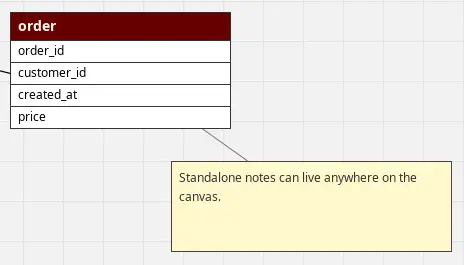
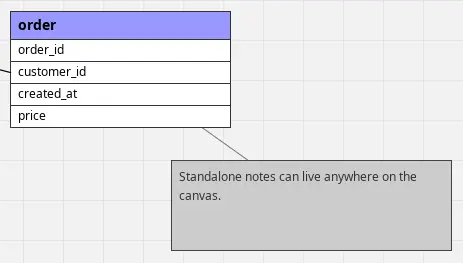
Open existing Modelizer work, avoid the clunky UI feeling, and keep working in a clean desktop app.
Move from idea to usable database design
Work through the full design flow with clear conceptual, logical, and physical views.
Design your concept
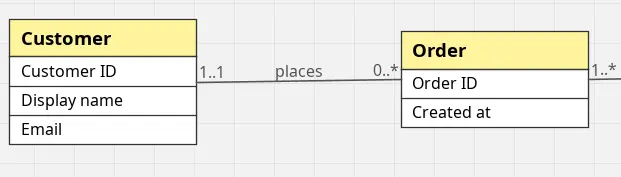
Use conceptual mode to create classes and connect them in a clear, abstract model before thinking about database details.
Continue to logic
Switch to logical design mode to turn your concept into a relational database model with tables, fields, and links.
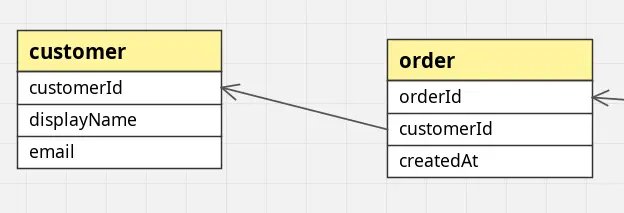
Prepare for use
Use physical design mode to get the model ready for real use by defining types, constraints, and database-specific details.
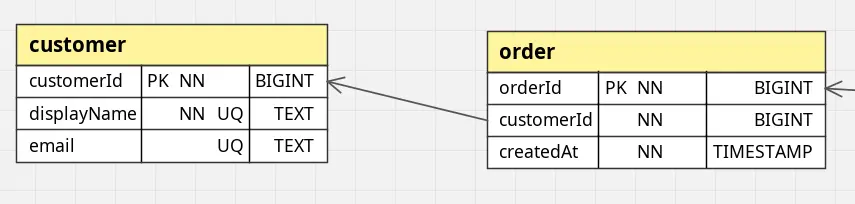
Get Modelizer Next
Choose the build that fits your setup.
Select your operating system and build type. The button updates to the exact file for your choice.
Operating system
Build type
Current version
Loading...
Controls, shortcuts, and gestures
Work faster without searching through menus.
Modelizer keeps common actions close to your keyboard and mouse. Use shortcuts for speed, the toolbar for clarity, and mouse gestures for direct work on the canvas.
Keyboard shortcuts
File actions
Ctrl
N
Create a new document
Ctrl
O
Open a model file
Ctrl
S
Save the current document
Ctrl
Shift
S
Save the document under a new name
Ctrl
Shift
E
Export the model as an image
Add elements
Ctrl
T
Add a table
Ctrl
F
Add a field
Shift
C
Add a comment
Ctrl
L
Add a link
Selection and navigation
Ctrl
A
Select all elements
Esc
Clear the current selection
↑
↓
Move through fields
Alt
↑
Alt
↓
Move the selected field up or down
F
.
Focus selected element(s)
Shift
F
Ctrl
.
Focus all elements
History and clipboard
Ctrl
Z
Undo the last action
Ctrl
Shift
Z
Redo the last undone action
Ctrl
C
Copy the selection
Ctrl
X
Cut the selection
Ctrl
V
Paste the copied elements
Mouse gestures
Right-click drag
Connect classes or attach a comment to another element
Middle-click drag
Pan the canvas
Scroll wheel
Zoom in or out
Left-click drag
Move selected elements
Double left-click
Edit the selected element
Edit, rename, and delete
Ctrl
E
Double left-click
Edit the selected item
F2
Rename the selected item. In Conceptual mode, this edits the conceptual name.
If no technical name exists, it edits the visible name.
Alt
F2
Edit the technical name of the selected item
Tab
Shift
Tab
Confirm the edit and rename the next or previous item
Alt
Tab
Alt
Shift
Tab
Confirm the edit and rename the next or previous technical name
Delete
Shift
X
Delete the selected item
Ctrl
D
Duplicate the selected elements
Shift
S
Apply a style to the selected item
CLI usage
Export models straight from the command line.
Use the CLI to export one model, run batch exports, or script diagram generation in your build process.
Check all options
Start with the help command when you want to see every export flag and the current app version.
                    $ modelizer-next --help

                    Modelizer Next <modelizer.kbra.lu> Copyright (C) 2026 UnKabaraQuiDev <u.kbra.lu+mn@gmail.com>

                    This program comes with ABSOLUTELY NO WARRANTY.

                    This is free software, and you are welcome to redistribute it under certain conditions.


                    Modelizer Next App / 8-NIGHTLY-230 [Automated nightly build 2026-05-09_14-28-58 (shared)]

                    App dir: /home/pcy113/.modelizer-next


                    Usage:

                     modelizer --export <file> --type <svg|png> [options]


                    Options:


                       -t, --type <svg|png>
                      Export format


                       -o, --out <directory>
                      Output directory, default: current directory


                       -s, --scope <scope>
                      selection|view|everything, default: everything


                       -p, --panels <list>
                      Comma-separated PanelType names: conceptual (c), logical (l), physical (p)


                       -n, --pattern <pattern>
                      File name pattern, default: '%FILENAME%-%TYPE%.%EXTENSION%', available: %FILENAME%, %TYPE%, %EXTENSION%, %DATE%, %TIME%


                       -f, --force
                      Continue on legacy/newer-version warnings


                       -h, --help
                      Print this help


                       -m, --multiple
                      Multiple input files, separated by commas "path1,path2,path3..."


                       -w, --wildcard
                      Enable wildcard support for input files, supports: *, **, ?


                       -j, --jobs <count>
                      Dispatch multiple threads to speed up the export process
Export one model
Pick a model file, choose the panels you need, and export the result as PNG.
$ modelizer-next --export path/to/file.mn --panels conceptual,logical,technical --type pngBatch export with wildcards
Export many files at once, enable wildcard matching, send output to a folder, and use multiple jobs.
$ modelizer-next -e path/to/files/*.mn -w -p c,l,t -j 5 -o out/Support the project
Want to join the ride ?
Modelizer Next grows through code, ideas, testing, and support from the community. Fork the project to build with us, or sponsor the work behind it.
Fully Open Source
Modelizer Next is published on GitHub under the GPL-3.0 license.


To try out the different versions, open Modelizer Next and change your update channel in Info > Update Channel.
Loading update channels...